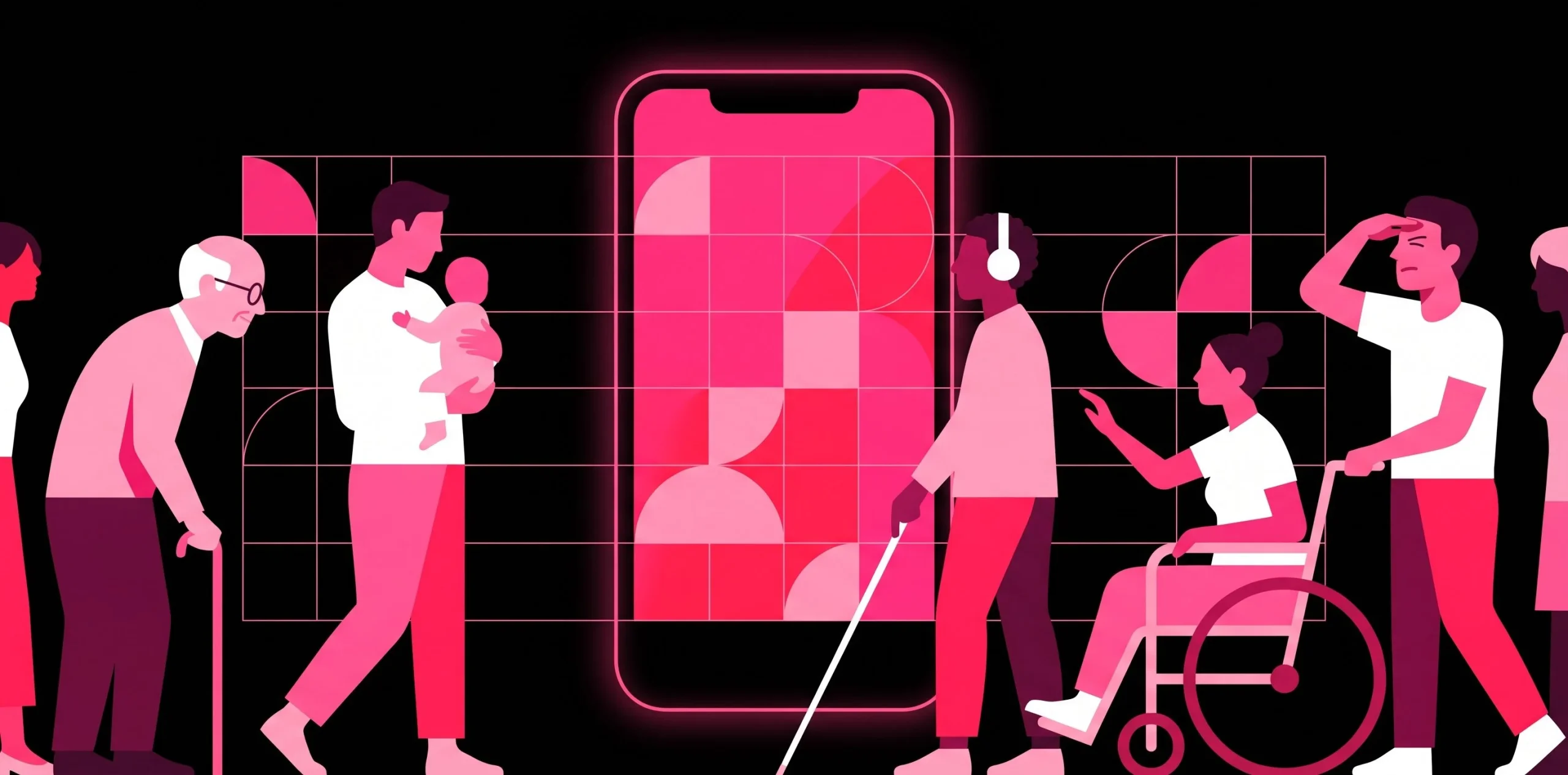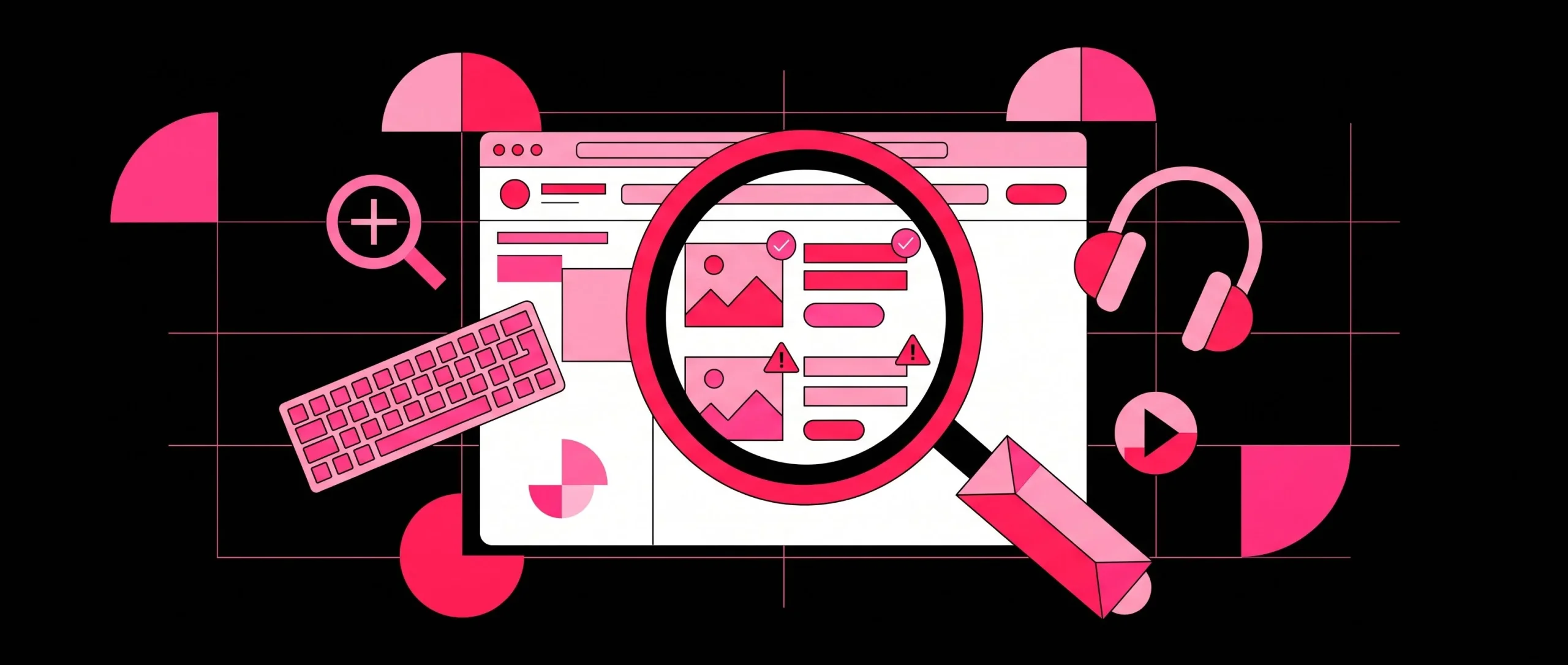
Website accessibility testing is an assessment of whether people with different abilities can use a website: blind people with a screen reader, people who use only a keyboard, low-vision people with screen magnification, Deaf people. A full professional audit takes days, but you can do a basic check yourself in an hour. Below are the tools and manual tests we use at QD studio before every launch.
Why automated checks are not enough
Automated scanners are fast and free, but they see only part of the problems — from a third to a half, by various estimates. A scanner will notice that an image has no description but won't understand that the description "img_2045.jpg" explains nothing. It will check contrast but won't tell you that the menu can't be closed with a keyboard.
So reliable accessibility testing always has two parts:
- Automated tools — to quickly find obvious errors.
- Manual tests — to check what requires a human eye.
Part 1. Free tools
Lighthouse in Chrome
Built into the Chrome browser. Open the page, press F12, choose the Lighthouse tab, tick "Accessibility" and run the check. You get a score from 0 to 100 and a list of problems with explanations. It's the fastest way to start, but a score of 100 doesn't mean the website is fully accessible — only that there are no errors the tool can detect.
WAVE by WebAIM
A free online service and browser extension. It shows problems right on the page with icons: where alt text is missing, where contrast is low, where a heading level is skipped. Very visual — handy for showing the team or a designer.
axe DevTools
An extension for Chrome and Firefox from Deque. Its engine powers many other tools. The basic version is free and gives accurate results with minimal false positives — well suited to developers.
Contrast check
In Chrome you can hover the element picker over text and see its contrast. To check individual colour pairs there are free online WCAG contrast calculators: you enter the text and background colours and get the ratio and whether it meets the 4.5:1 requirement.
Part 2. Manual tests anyone can do
Test 1. Keyboard only (10 minutes)
Put the mouse aside and go through the website's main scenario: from the first screen to submitting a request.
- Tab moves to the next element, Shift+Tab back, Enter presses a button, Space ticks a checkbox, Esc closes a dialog.
- Can you see where the focus is? There should be a visible outline around the button or link.
- Can you open and close the menu, a modal window, a drop-down list?
- Does the focus get "stuck" somewhere you can't get out of?
- Is the order logical: top to bottom, left to right?
If you couldn't submit the form without a mouse, neither can a person with a motor impairment.
Test 2. Zoom to 200% and 400% (5 minutes)
Press Ctrl and "+" (Cmd and "+" on a Mac) several times until the zoom is 200%, then 400%. The text should get bigger, and the page should reflow into one column without horizontal scrolling. Nothing should overlap or get cut off. This is how low-vision people and many older people use websites.
Test 3. Screen reader (15 minutes)
A screen reader reads the page aloud. Free options are already on your devices:
- NVDA — a free screen reader for Windows;
- VoiceOver — built into Mac, iPhone and iPad;
- TalkBack — built into Android.
Turn it on and listen to your home page. Is it clear what the buttons are? Are the photos described? Are headings announced? Hearing "button, button, link, image" without explanation is the best way to understand how a blind person experiences your website. If screen readers are new to you, start with VoiceOver on iPhone: it's the easiest to learn.
Test 4. Forms and errors (5 minutes)
Try submitting the form empty and with mistakes. Check:
- whether each field has a visible label, not just a placeholder inside that disappears;
- whether it's clear what exactly is wrong and next to which field;
- whether the error is marked not only in red but also with text or an icon;
- whether there's a CAPTCHA that can't be passed without sight.
Test 5. Video, sound and animation (5 minutes)
- Do all videos with speech have captions?
- Does sound start playing automatically?
- Can carousels and animations be paused?
- Is there any flashing more than three times per second?
Test 6. Heading structure (5 minutes)
Headings are the "table of contents" for a screen reader and for Google. A page should have one main H1 heading, then H2 for sections and H3 for subsections, without skipping levels. You can check this with the WAVE extension (the "Structure" tab) or the browser's built-in tools.
How to record the results of an accessibility test
It's convenient to keep a simple table with four columns: what doesn't work, on which page, who it affects and how critical it is. First fix what blocks an action completely: the form can't be sent, the menu won't open, a key video has no captions. Then what gets in the way but doesn't block: weak contrast, uninformative image descriptions.
Repeat the check after every major website update. Accessibility isn't "done once": a new page or banner can break what used to work.
When you need a professional audit
A self-check is enough to find and fix the most visible problems. A professional audit is needed if:
- you sell in the EU and fall under the European Accessibility Act;
- the website is large: an online store, user accounts, complex forms;
- you need an official report on conformance with WCAG 2.2 level AA.
At QD, accessibility is also tested by people with experience of using assistive technologies — part of our team is Deaf, and we know the barriers from the inside. More on who needs accessibility and why in the article "Digital accessibility: who really uses it", and a checklist for fixes in "Website accessibility".
In short
Website accessibility testing is an hour of work: an automated tool (Lighthouse, WAVE or axe) plus six manual tests — keyboard, zoom, screen reader, forms, video, headings. That's enough to find most barriers. Want us to check your website or build a new one that's accessible from day one? Write to us or see how we build websites.